Showing posts with label Bulk Insert using GridView and Sql Server XML. Show all posts

Wednesday, October 12, 2011

Export Import Excel Data into Sql Server Using SqlBulkCopy-ASP.NET


Export Import Excel Data into Sql Server Using SqlBulkCopy-ASP.NET

In this example i am going to describe how to Import or insert data into Sql server from Excel spreadsheet using sqlbulkcopy method.

First of all create a Excel workbook as shown in image below and insert some data into it.
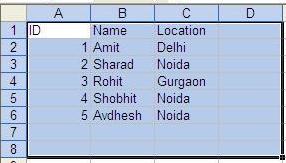


Now write this code to insert data into SQL table
public partial class _Default : System.Web.UI.Page
{
string strConnection = ConfigurationManager.ConnectionStrings
["ConnectionString"].ConnectionString;
protected void Page_Load(object sender, EventArgs e)
{

}
protected void Button1_Click(object sender, EventArgs e)
{
//Create connection string to Excel work book
string excelConnectionString =
@"Provider=Microsoft.Jet.OLEDB.4.0;
Data Source=C:\Details.xls;
Extended Properties=""Excel 8.0;HDR=YES;""";

//Create Connection to Excel work book
OleDbConnection excelConnection =
new OleDbConnection(excelConnectionString);

//Create OleDbCommand to fetch data from Excel
OleDbCommand cmd = new OleDbCommand
("Select [ID],[Name],[Location] from [Detail$]",
excelConnection);

excelConnection.Open();
OleDbDataReader dReader;
dReader = cmd.ExecuteReader();

SqlBulkCopy sqlBulk = new SqlBulkCopy(strConnection);
sqlBulk.DestinationTableName = "Details";
//sqlBulk.ColumnMappings.Add("ID", "ID");
//sqlBulk.ColumnMappings.Add("Name", "Name");
sqlBulk.WriteToServer(dReader);
}
}

If there are more columns in your database table or excel workbook and you want to insert data in some of them than you need to add ColumnMappings like this
sqlBulk.ColumnMappings.Add("ID", "ID");
sqlBulk.ColumnMappings.Add("Name", "Name");


End result will be like this


Hope this helps

Sunday, June 26, 2011

Bulk Insert using GridView and Sql Server XML


Download source and store procedure script from here.


private void InsertEmptyRow()
{
DataTable dt = new DataTable();
DataRow dr = null;


dt.Columns.Add(new DataColumn("CustName", typeof(string)));
dt.Columns.Add(new DataColumn("CustPosition", typeof(string)));
dt.Columns.Add(new DataColumn("CustCity", typeof(string)));
dt.Columns.Add(new DataColumn("CustState", typeof(string)));


for (int i = 0; i < 5; i++)
     {
          dr = dt.NewRow(); dr["CustName"] = string.Empty;
          dr["CustPosition"] = string.Empty;
          dr["CustCity"] = string.Empty;
          dr["CustState"] = string.Empty; dt.Rows.Add(dr);
    }
   gvCustomer.DataSource = dt; gvCustomer.DataBind();
}


 As, you see above code I am creating five empty rows initially which is empty. This method I am calling at page load event. Note :- I am creating only five empty rows, you can create as much required for your bulk insert according to your requirement And one more difference between, Bulk update and bulk insert is that as we fetch all records for bulk update, so we don’t have empty rows, but in insert we have five empty rows. One more thing, Suppose we insert three rows and two rows empty what would happen ?. For that I am checking if name field is empty or not, else don’t insert.

 StringBuilder sb = new StringBuilder(); sb.Append("");
for (int i = 0; i < gvCustomer.Rows.Count; i++) 

      { 
      TextBox txtName = gvCustomer.Rows[i].FindControl("txtName") as TextBox; 
      TextBox txtPosition = gvCustomer.Rows[i].FindControl("txtPosition") as TextBox; 
      TextBox txtCity = gvCustomer.Rows[i].FindControl("txtCity") as TextBox;
      TextBox txtState = gvCustomer.Rows[i].FindControl("txtState") as TextBox;
      if(txtName.Text.Length != 0)
           sb.Append("");
}
sb.Append("
");


As you see, I am checking txtName if length is more then zero then insert record else skip it. As other insert detail is simple.


string conStr = WebConfigurationManager.ConnectionStrings["BlogConnectionString"].ConnectionString;
SqlConnection con = new SqlConnection(conStr);
SqlCommand cmd = new SqlCommand("InsertCustomer", con);
cmd.CommandType = CommandType.StoredProcedure;
cmd.Parameters.AddWithValue("@XMLCustomer", sb.ToString());


try
{
using (con)
{
con.Open();
cmd.ExecuteNonQuery();
}

lblError.Text = "Record(s) Inserted successfully";
lblError.ForeColor = System.Drawing.Color.Green;
}
catch (Exception ex)
{
lblError.Text = "Error Occured";
lblError.ForeColor = System.Drawing.Color.Red;
}


Store procedure also simple, just direct insert from XML structure what it consist, this is also difference between bulk update as in which we check in where condition of customer id matches or not


set ANSI_NULLS ON
set QUOTED_IDENTIFIER ON
go


CREATE PROCEDURE [dbo].[InsertCustomer]
(
@XMLCustomer XML
)
AS
BEGIN


INSERT INTO CUSTOMER
(CustName,CustPosition,CustCity,CustState)
SELECT
TempCustomer.Item.value('@Name', 'VARCHAR(50)'),
TempCustomer.Item.value('@Position', 'VARCHAR(50)'),
TempCustomer.Item.value('@City', 'VARCHAR(50)'),
TempCustomer.Item.value('@State', 'VARCHAR(50)')
FROM @XMLCustomer.nodes('/root/row') AS TempCustomer(Item)


RETURN 0
END


Note :- In bulk update, we are passing customer id also, here its not required as it is auto increment.

I hope you like this article about how to insert bulk records at a time. Like to have a feedback on this article.


Original article :- http://weblogs.asp.net/manojkdotnet/archive/2010/01/26/bulk-insert-using-gridview-and-sql-server-xml.aspx